
PCTX Code Editor: Write, Test, and Ship Code Right From Your Browser
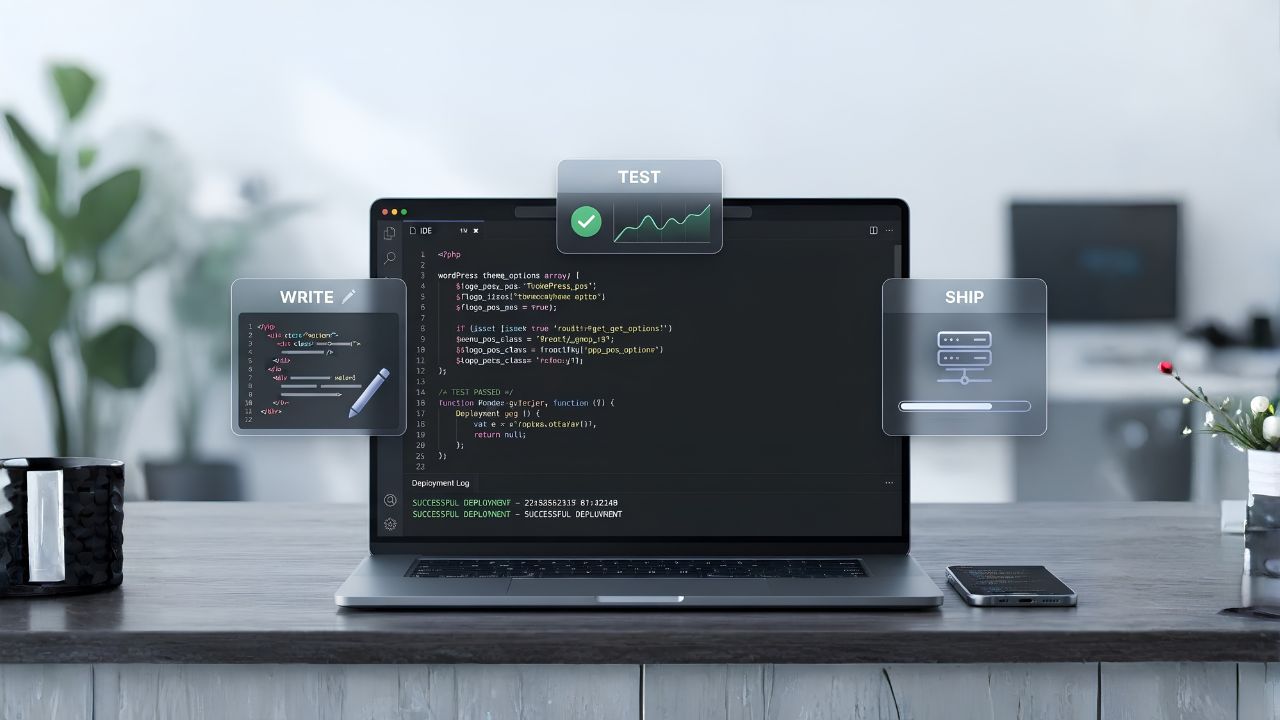
If you’ve ever needed to quickly test a snippet of HTML, tweak a piece of CSS, or check whether a bit of JavaScript actually works before pasting it into your project, you know the usual routine. Open a text editor, save a file, open it in a browser, refresh, repeat. It’s not hard, but it eats time you don’t really have. PCTX Code Editor was built to cut that whole process down to a single tab.
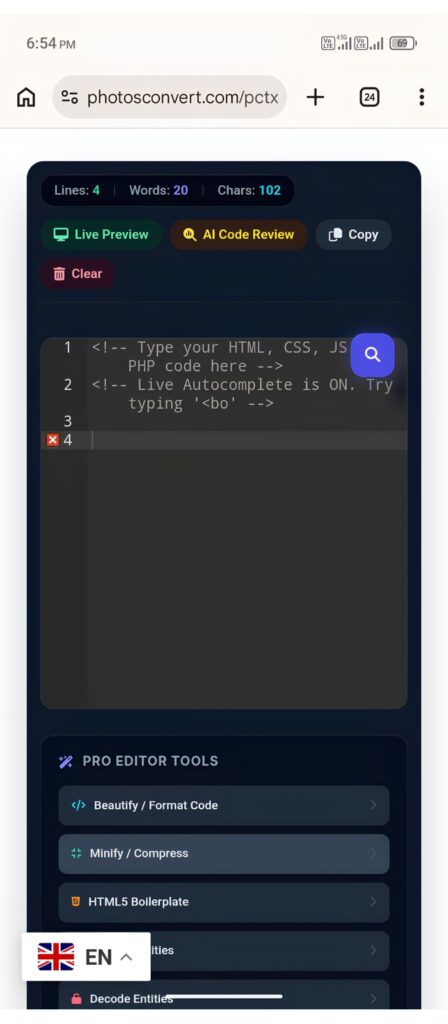
It’s a browser-based code editor with real syntax highlighting, live autocomplete, an instant preview window, and a handful of tools that most people end up needing sooner or later: beautifying messy code, minifying it for production, converting case, cleaning up whitespace, and exporting your work in whatever file format you actually need. On top of that, there’s now a built-in AI review feature that reads through your code and points out issues before you do.
None of this requires an account, a plugin, or a download. You open the page, start typing, and the editor does the rest.
What You Can Actually Do With It
The core of the tool is the code editor itself, powered by the same editing engine used in a lot of professional IDEs. That means real syntax highlighting for over twenty languages and formats, from HTML, CSS, and JavaScript to PHP, Python, Java, Go, Rust, SQL, and more. As you type, the editor suggests completions automatically, so if you start typing a tag or a property name, you’ll usually see it pop up before you finish typing it. This isn’t just a convenience thing. When you’re working fast, autocomplete catches typos before they become bugs.
Right above the editor, you’ll notice a small counter showing your line count, word count, and character count. It updates as you type, which is handy if you’re working with any kind of length restriction, or just curious how much you’ve written.
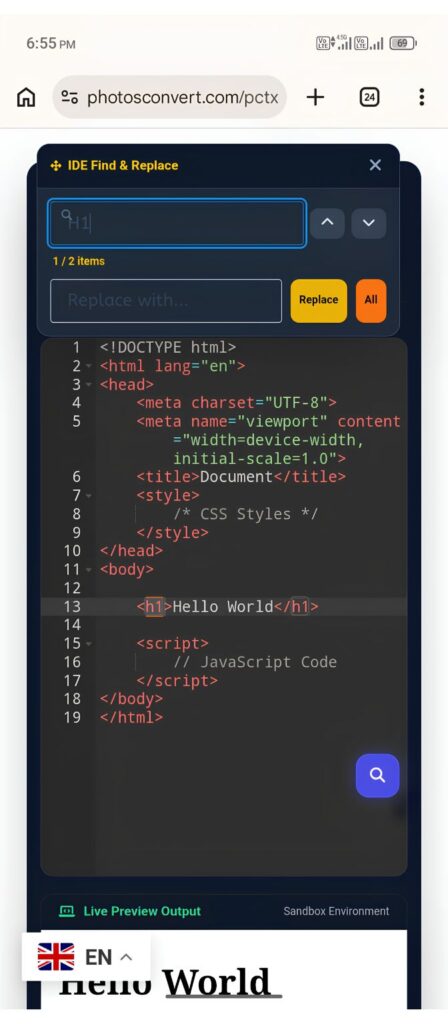
There’s a search icon floating in the top corner of the editor. Click it and a small find-and-replace panel opens up. Type in what you’re looking for, and every single match in your code gets highlighted in yellow immediately, with the current match marked in orange so you always know exactly where you are. A small counter tells you how many matches were found, something like “3 items found” or “2 / 5 items” as you move through them. Hit enter to jump to the next match, or shift+enter to go back. If you need to swap text out, the replace field below lets you replace one match at a time or all of them in one go. You can also drag this panel anywhere on the screen if it’s covering something you need to see.
Once you’ve written something, hit the “Live Preview” button and a rendered output box appears right below the editor, showing exactly what your HTML, CSS, and JavaScript produce together. It updates as you type, so there’s no need to keep refreshing anything.
The right-hand panel holds a set of smaller tools that are easy to overlook but genuinely useful. “Beautify” reformats messy, unindented code into something readable. “Minify” strips out extra spaces and comments if you need a compact version for production. There’s a one-click HTML5 boilerplate if you’re starting a page from scratch and don’t want to type the same doctype and meta tags again. You’ll also find entity encoding and decoding, uppercase and lowercase conversion, a whitespace cleaner, and a tool that removes duplicate lines, which comes in handy more often than you’d expect when you’re pasting from multiple sources.
When you’re ready to save your work, scroll down to the Export Center. Type a filename, pick a format from the dropdown, which includes HTML, CSS, JavaScript, JSX, TypeScript, PHP, Python, Java, and a long list of others, and click download. If your browser or the page you’re viewing this on doesn’t trigger the download automatically, a small link appears right underneath the button that opens the file in a new tab so you can save it manually. Either way, your code ends up on your device.
The AI Code Review Feature
This is the newest addition, and it works differently from everything else in the tool because it isn’t just running rules against your code locally. When you click “AI Code Review” and then “Run Review,” your code gets sent off for a real read-through. Within a few seconds, you’ll get back a breakdown organized into sections: issues that need fixing, suggestions for improvement, and things you’re already doing well. It’s not a linter spitting out generic warnings. It reads your code the way a colleague would if you asked them to take a look before you pushed it somewhere.
This is worth using even on code you’re fairly confident about. Sometimes what catches an extra pair of eyes isn’t a broken function, it’s a missing alt attribute, an accessibility gap, or a pattern that works but isn’t quite the cleanest way to do it. Since it reads whatever language mode you’re currently in, switch your format dropdown to match your code before running a review, so the feedback is relevant to what you’re actually writing.
A Few Things Worth Knowing Before You Start
The editor works best in a modern browser. Older browsers may not support some of the newer download and clipboard features, so if a download doesn’t start automatically, that fallback link is there specifically for that reason. Nothing you type is saved automatically between sessions, so if you close the tab, your code is gone unless you’ve downloaded or copied it first. This is intentional. The tool isn’t meant to store your work long-term, it’s meant to be a fast, disposable workspace where you write, test, and export.
The live preview runs inside an isolated frame, so scripts in your code execute safely without affecting the rest of the page. That also means certain browser features that require a full page context, like some storage APIs, won’t behave the same way they would on a real deployed site. If your code depends on those, test it in its real environment before relying on the preview here.
To see some of our best browser-based tools, click here All Tools. For example, see below and yes, there are many more tools on our site besides these.
Instant Unique Fonts Generator
Frequently Asked Questions (FAQ)
A Note on Security: This is a 100% client-side tool. Your code and files are processed entirely within your web browser and are never uploaded to any server. Your privacy is completely protected.Q1: Do I need to sign up or install anything to use this?
No. Everything runs directly in your browser. There’s no account, no plugin, and no software to install.
Q2: Will my code be saved if I close the tab or refresh the page?
No, and this is by design. Download your file or copy your code before closing the tab if you want to keep it.
Q3: What languages does the editor support?
Syntax highlighting and export are available for HTML, CSS, JavaScript, TypeScript, JSX, TSX, PHP, Python, Java, C, C++, C#, Ruby, Go, Rust, Swift, Kotlin, SQL, XML, YAML, Markdown, and a few more formats through the export dropdown.
Q4: Why isn’t autocomplete suggesting what I expect?
Autocomplete is tied to whichever language mode is currently selected. If you’re writing PHP but the editor is still set to plain text or CSS, switch the format dropdown first, and suggestions should line up with what you’re typing.
Q5: How does the search feature work exactly?
Click the magnifying glass icon to open the search panel, then type what you’re looking for. Every match highlights in yellow across the entire file, the current one is marked in orange, and a counter shows how many were found. Use the arrow buttons, or enter and shift+enter, to move between them.
Q6: Is the download button not working a common issue?
Occasionally, depending on the browser or how the page is embedded, an automatic download won’t trigger. When that happens, a link appears right below the download button letting you open the file in a new tab and save it manually from there.
Q7: What exactly does the AI Code Review check for?
It looks at your code for real bugs, security concerns, accessibility gaps, and general style improvements, then organizes its findings into clear sections so you can act on them quickly. It reviews whatever language mode is currently active, so make sure that matches your code.
Q8: Can I use this for production code, or is it just for testing snippets?
Both. A lot of people use it purely for quick testing, but the beautify, minify, and export tools are solid enough to prepare files you actually ship. Just remember nothing is auto-saved, so download your final version before you’re done.
Q9: Does the live preview show exactly what a real browser would render?
Very close, yes. It renders your HTML, CSS, and JavaScript together in real time. The one thing to keep in mind is that it runs in a sandboxed frame for safety, so anything relying on features tied to a full page environment might behave slightly differently than it would once deployed.
Q10: Is there a limit to how much code I can write or review?
There’s no hard limit on writing or editing. For the AI review specifically, very long files may occasionally get cut short in the response. If that happens, try reviewing your code in smaller sections for complete feedback.
| Category | PCTX Code Editor |
|---|---|
| Developer | PhotosConvert.com |
| Version | 1.0 |
| License | Freeware |
| Platform | Windows, macOS, Linux, Android |
| Size | Online Web Application |
| Features |
|
| Price | Free |
| Updated | August 15, 2026 |



This tool is amazing! It makes writing, testing, and previewing HTML, CSS, and JavaScript directly in the browser super fast and convenient. The built-in features like live preview, code beautifier, and especially the AI Code Review are extremely helpful for catching bugs and improving code quality instantly. A fantastic, time-saving web tool for developers! Highly recommended.